Docker Compose Deployment in Practice
Use the button above to download all required files: app.py, Dockerfile, compose.yaml, .env, and .dockerignore. Download and extract it in section 5.1, then use the extracted files.
1. Introduction to Docker and Compose
Docker packages an application, its runtime, and dependencies into an image, then starts containers from that image. Containers share the host kernel and suit web services, databases, and device data collection on development boards. ARM64 boards need compatible images; networking and resource limits still depend on host kernel support.
Compose describes builds, ports, volumes, and startup order for multiple containers in one YAML file. Images hold the application environment, containers run the processes, and volumes preserve business data when containers are removed or recreated. The same commands deploy, update, and stop the configured services.
This guide uses a Python + Redis counter: the Web container provides a page and API, while Redis stores the count over the Compose network. Container recreation, updates and rollback, and simulated failures demonstrate persistence, health checks, and automatic recovery as a starting point for your own applications.
2. Prepare the environment
2.1 Scope and tested setup
| Item | Tested configuration |
|---|---|
| Board | ArmSoM CM5 + CM5-IO, RK3576, 2 GB RAM |
| System | Official Debian 12 arm64 XFCE image |
| Kernel | 6.1.118-rk3576, updated with raw table support |
| Docker / Compose | Docker Engine 29.9.3 / Docker Compose v5.7.1 |
| Free storage before installation | Approximately 23 GB |
| Access | PC browser connected to board port 8080 |
ARM64 images, cgroups, OverlayFS, and container networking are required. CM5 + Debian 12 is verified here; other boards, Ubuntu, and Armbian require separate validation.
2.2 Network and command locations
The board needs access to its distribution repositories, Docker's repository, Docker Hub, and the Python package index. Connect the PC and board to the same LAN. Board commands use a root terminal; ordinary users can enter one with sudo -i. Run SDK configuration and build commands on the Linux host where your ArmSoM SDK is stored.
ip -br address
Record the LAN IPv4 address shown by ip -br address for browser access.
3. Configure and update the kernel
Docker bridge networking requires raw table support in the kernel. If the image does not enable CONFIG_IP_NF_RAW, add it to the SDK configuration and update the kernel first.
3.1 Select the board and modify its configuration
On your Linux host, enter the directory containing your ArmSoM SDK and select the chip and board from the menus. Replace the example path with your actual directory.
cd ~/code/armsom-sdk
./build.sh chip
For CM5, select the CM5-IO configuration under RK3576. Then check which kernel configuration the selected board uses:
grep '^RK_KERNEL_CFG=' output/.config
The configuration file is in kernel-6.1/arch/arm64/configs/. For example, CM5 uses armsom_linux_rk3576_defconfig. Open that file and add the following line, or change the existing entry to this value:
CONFIG_IP_NF_RAW=y
3.2 Build and update the kernel
Run the following command from the SDK root directory:
./build.sh kernel-6.1
Copy the generated linux-image-*.deb and linux-headers-*.deb packages to the board, then install them and reboot following the kernel update guide. After logging in again, verify the running configuration:
zcat /proc/config.gz | grep '^CONFIG_IP_NF_RAW='
The output should be CONFIG_IP_NF_RAW=y.
Skip this section if your image already enables the option. For other boards, edit the corresponding kernel configuration file. For a first SDK build, prepare the host environment using the SDK guide.
4. Install Docker
4.1 Configure the repository
Check the clock and repositories using the APT guide. If Docker is already installed, resolve package conflicts using the official guide.
apt update
apt install -y ca-certificates curl
install -m 0755 -d /etc/apt/keyrings
. /etc/os-release
curl -fsSL "https://download.docker.com/linux/$ID/gpg" \
  -o /etc/apt/keyrings/docker.asc
chmod a+r /etc/apt/keyrings/docker.asc

cat > /etc/apt/sources.list.d/docker.sources <<EOF
Types: deb
URIs: https://download.docker.com/linux/$ID
Suites: $VERSION_CODENAME
Components: stable
Architectures: $(dpkg --print-architecture)
Signed-By: /etc/apt/keyrings/docker.asc
EOF
ID should be debian or ubuntu, and the suite must match the installed release. On Armbian, verify the underlying Debian/Ubuntu distribution before configuring the repository.
Use the APT guide to resolve index errors before installing.
apt update
apt install -y docker-ce docker-ce-cli containerd.io \
  docker-buildx-plugin docker-compose-plugin
4.2 Start Docker and check the network backend
The tested CM5 image lacks nftables support, so it uses the installed legacy backend. If your image supports nftables and Docker already starts correctly, proceed to the version checks.
update-alternatives --set iptables /usr/sbin/iptables-legacy
update-alternatives --set ip6tables /usr/sbin/ip6tables-legacy
systemctl reset-failed docker
systemctl enable docker
systemctl restart docker
docker version
docker compose version
This example has no authentication and is intended for a trusted LAN. External deployments need access controls and HTTPS; review Docker firewall behavior.
5. Deploy the project
5.1 Download the complete example
Download the archive linked at the start of this article and extract it into ~/compose-demo/:
Alternatively, use the download button and transfer compose-demo.tar.gz into that directory on the board. Skip curl and run the extraction command directly.
mkdir -p ~/compose-demo
cd ~/compose-demo
curl -fL https://docs.armsom.org/downloads/docker-compose/compose-demo.tar.gz \
  -o compose-demo.tar.gz
tar -xzf compose-demo.tar.gz
The application follows this path.
PC browser
  → board IPv4:8080
  → web:8000 (Gunicorn + Flask)
  → redis:6379 (Compose service-name resolution)
  → redis-data volume (AOF persistence)
GET /api/state returns the counter and version. POST /api/increment increments the counter atomically. GET /health checks Redis connectivity. Loading the page and running health checks do not increase the counter.
5.2 Understand the Compose configuration
Use compose.yaml from the archive. Its main settings are explained below.
| Setting | Role in this example |
|---|---|
build / image | Build the ARM64 web image on the board and assign a version tag |
ports | Map host port 8080 to container port 8000 |
REDIS_HOST: redis | Connect by service name instead of a fixed container IP |
depends_on with service_healthy | Wait for Redis readiness at initial startup |
volumes | Store Redis data beyond the lifetime of a container |
restart: unless-stopped | Restart after process failure; preserve a manual stop |
mem_limit / cpus | Limit resource use, subject to host cgroup support |
logging | Bound the size and number of retained container log files |
Health checks make Web wait for Redis readiness; see Compose startup order.
Use Dockerfile from the archive to build the image. It pins dependencies and runs Gunicorn as an ordinary user.
5.3 Build, start, and access the application
cd ~/compose-demo
docker compose up -d --build --wait --wait-timeout 120
docker compose ps
curl -fsS http://127.0.0.1:8080/api/state
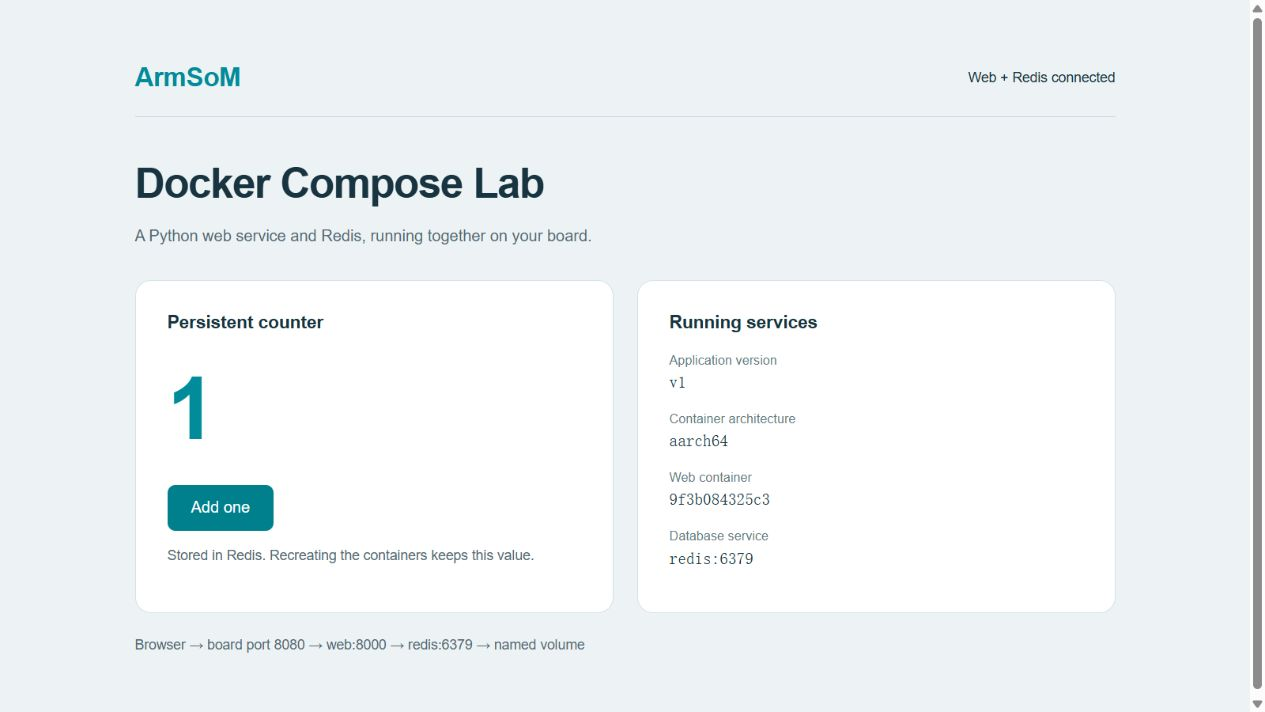
Open http://BOARD_IP:8080 and click Add one to increase the counter. Both services should be healthy.
6. Persist data
6.1 Check the counter after recreating containers
cd ~/compose-demo
curl -fsS http://127.0.0.1:8080/api/state
docker compose down
docker compose up -d --wait --wait-timeout 120
curl -fsS http://127.0.0.1:8080/api/state
docker volume inspect armsom-compose_redis-data --format '{{.Mountpoint}}'
The counter should survive recreation. Use the volume path returned by inspect; project source is in ~/compose-demo/.
docker compose down -v deletes the volume. Redis syncs AOF every second, so power loss may lose approximately one second of writes. Power-loss reliability is not tested here.
6.2 Back up with services stopped
Stop both services for a consistent file backup, then mount the volume in a temporary container.
cd ~/compose-demo
mkdir -p backups
docker compose stop web redis
docker compose run --rm --no-deps \
  -v "$PWD/backups:/backup" redis \
  sh -c 'tar -czf /backup/redis-data.tar.gz -C /data .'
docker compose up -d --wait --wait-timeout 120
tar -tzf backups/redis-data.tar.gz
The backup is saved to ~/compose-demo/backups/redis-data.tar.gz; copy it to another device.
7. Updates and recovery
7.1 Update the web service and roll back
Edit the extracted app.py and .env files to change the page title and build a new image tagged v2. Redis keeps its existing volume.
cd ~/compose-demo
sed -i 's/<h1>Docker Compose Lab<\//<h1>Docker Compose Lab v2<\//' app.py
sed -i 's/^APP_TAG=.*/APP_TAG=v2/; s/^APP_VERSION=.*/APP_VERSION=v2/' .env
docker compose up -d --build --wait --wait-timeout 120
curl -fsS http://127.0.0.1:8080/api/state
The page title and API version should show v2. Roll back using the retained v1 image and restore the example source.
sed -i 's/^APP_TAG=.*/APP_TAG=v1/; s/^APP_VERSION=.*/APP_VERSION=v1/' .env
sed -i 's/<h1>Docker Compose Lab v2<\//<h1>Docker Compose Lab<\//' app.py
docker compose up -d --no-build --wait --wait-timeout 120
curl -fsS http://127.0.0.1:8080/api/state
Updates briefly interrupt service. Keep the v1 image for rollback.
7.2 Simulate a database outage
cd ~/compose-demo
docker compose stop redis
curl -sS -o /tmp/compose-response.json -w '%{http_code}\n' \
  http://127.0.0.1:8080/api/state
cat /tmp/compose-response.json
docker compose up -d --wait --wait-timeout 120
curl -fsS http://127.0.0.1:8080/api/state
The API returns 503 while Redis is stopped and returns data after recovery. A sustained outage makes the web service unhealthy. Ordinary Docker restart policies react to container process exits; a health-status change alone does not restart the process.
7.3 Simulate a web process crash
Run the complete block to terminate this project's Web main process and check automatic restart:
cd ~/compose-demo
container_id=$(docker compose ps -q web)
host_pid=$(docker inspect --format '{{.State.Pid}}' "$container_id")
test "$host_pid" -gt 1 && kill -KILL "$host_pid"
sleep 10
docker compose ps
docker inspect "$(docker compose ps -q web)" --format '{{.RestartCount}}'
curl -fsS http://127.0.0.1:8080/api/state
The restart count should increase. A manual stop prevents automatic restart; run docker compose up -d to resume.
7.4 Verify recovery after a board reboot
Leave both services running and reboot the board.
reboot
Log in again and check without running up again.
cd ~/compose-demo
systemctl is-active docker
docker compose ps
curl -fsS http://127.0.0.1:8080/api/state
Expect active, two healthy services, and the counter value from before reboot.
8. Board results
The following results apply to CM5 running the official Debian 12 image. The counter was incremented to 5 before persistence and recovery tests.
| Test | Observed result |
|---|---|
| Kernel update | 6.1.118-rk3576 updated from #274 to #275; running configuration contains CONFIG_IP_NF_RAW=y |
| Build and deployment | ARM64 image built successfully; both Web and Redis healthy |
| Resource limits | Web cpu.max is 100000 100000 and memory.max is 268435456, corresponding to 1 CPU / 256 MiB |
| Container recreation | Counter remains 5 after down / up |
| Offline backup | Created backups/redis-data.tar.gz; Redis data files can be listed |
| Update and rollback | v1 → v2 → v1, with counter 5 throughout |
| Database outage | API returns 503; a sustained outage makes Web unhealthy; service recovers when Redis returns |
| Web process failure | Automatic recovery after terminating the main process; RestartCount increases from 0 to 1 |
| Board reboot | Docker starts automatically, both services healthy, counter remains 5 |
The screenshot shows counter 1 after the first click; subsequent recovery tests use counter 5. These are functional and recovery checks, not throughput or long-term stability tests.
9. Troubleshooting and extensions
cd ~/compose-demo
docker compose ps -a
docker compose logs --tail=50
journalctl -u docker -n 50 --no-pager
docker stats --no-stream
| Symptom | Check |
|---|---|
Failed to initialize nft | Check CONFIG_NF_TABLES and the iptables backend, section 4.2 |
can't initialize iptables table raw | Check CONFIG_IP_NF_RAW in the running kernel, section 3 |
| Image pull timeout or rate limit | Check DNS, Docker Hub connectivity, and account limits; use an approved registry |
exec format error | Verify ARM64 support in the image and included executable files |
| Port 8080 already in use | Change APP_PORT in .env and run docker compose up -d |
| Web is unhealthy | Inspect application logs and Redis; the health endpoint checks database connectivity |
| Memory growth or repeated restarts | Inspect docker stats and OOM status; adjust limits for the workload |